 Keet Support
Snooze Notifications 🔕
Go to 'Profile' / 'Notifications' and select 'Snooze all notifications' to pause alerts for a set time without changing each chat individually.
How do I snooze all notifications in Keet?
If you need a break from alerts, you can snooze all notifications for a set period instead of muting each chat one by one.
🔕 Snoozing notifications only pauses alerts. Message delivery, message sync, room updates, and app usage all continue as normal.
-
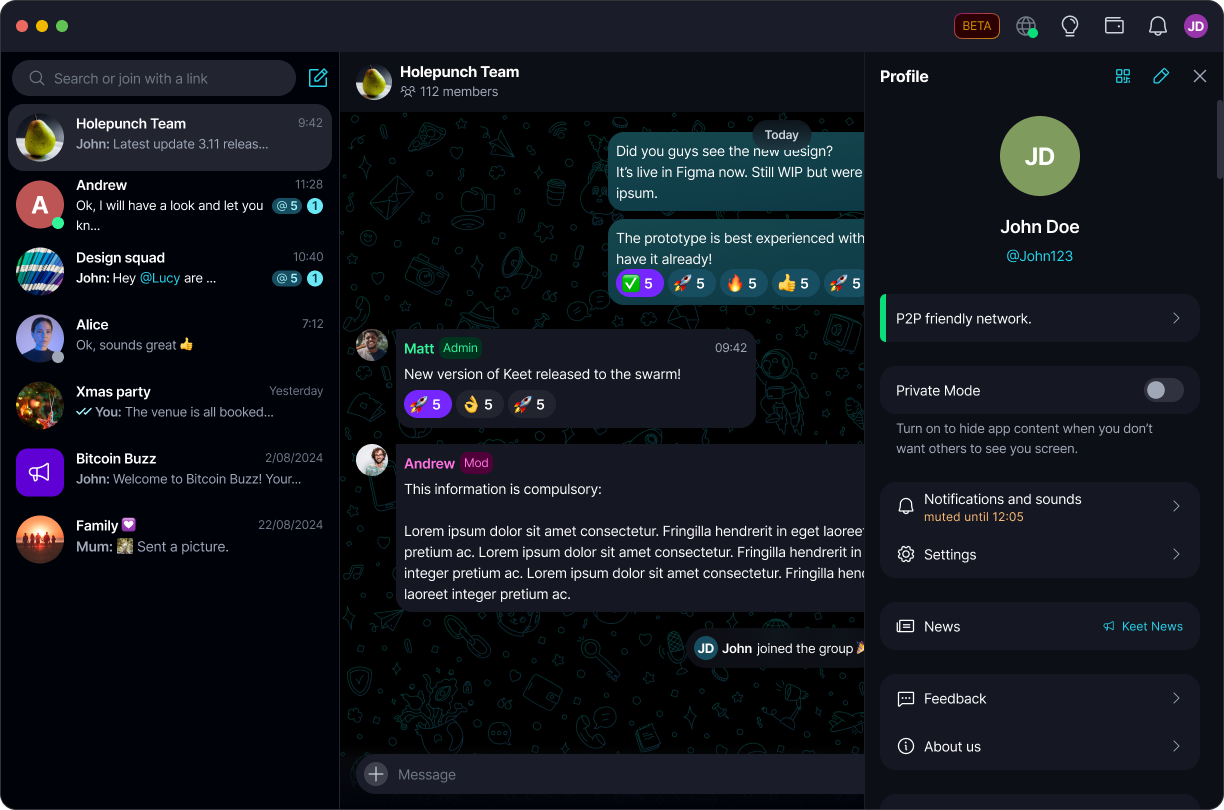
Go to 'Profile' and select 'Notifications and sounds':
-
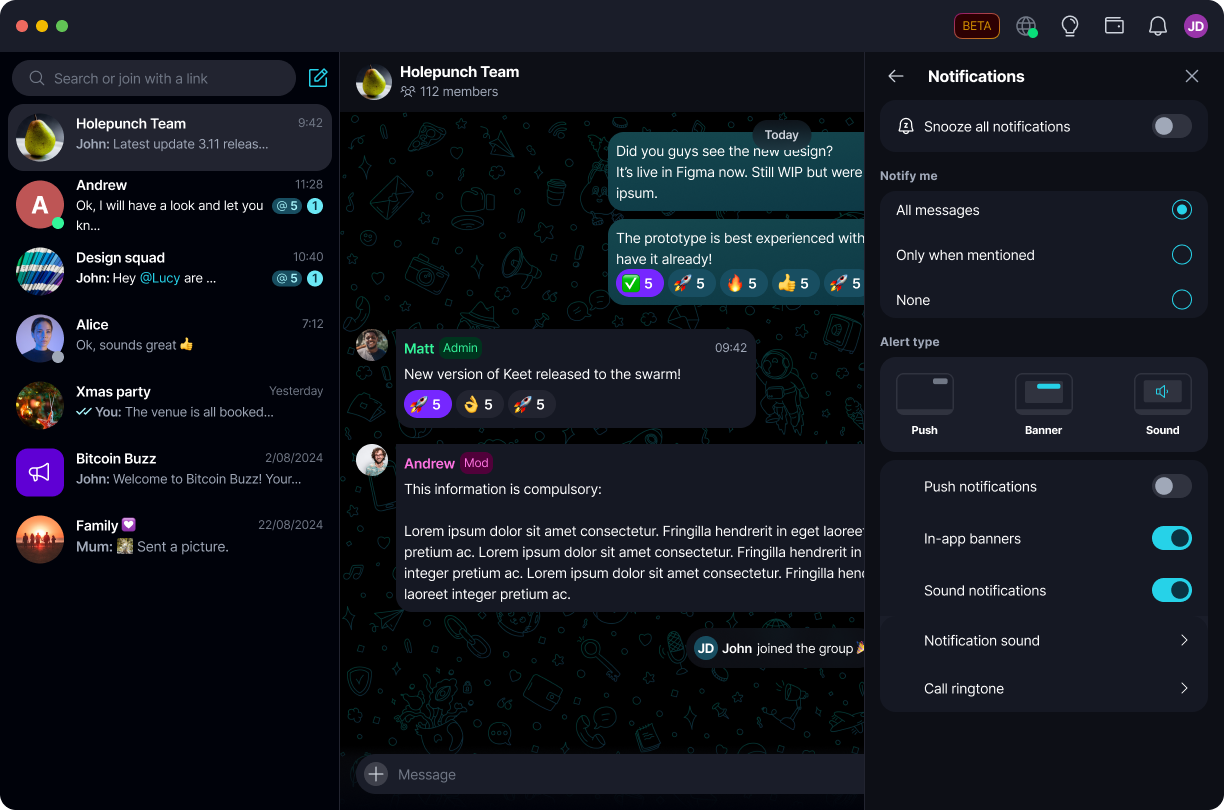
Toggle on 'Snooze all notifications' to open the duration list:
-
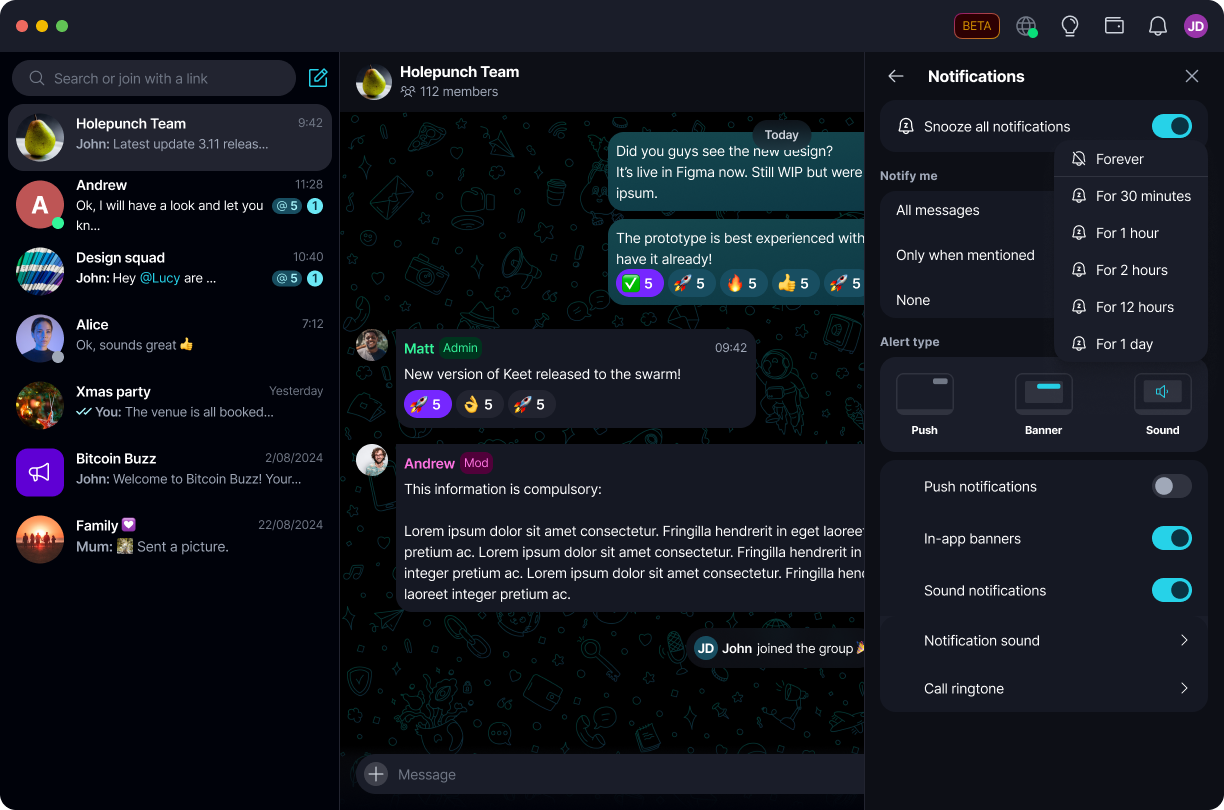
Choose how long to snooze for - Forever, 30 minutes, 1 hour, 2 hours, 12 hours, or 1 day:
-
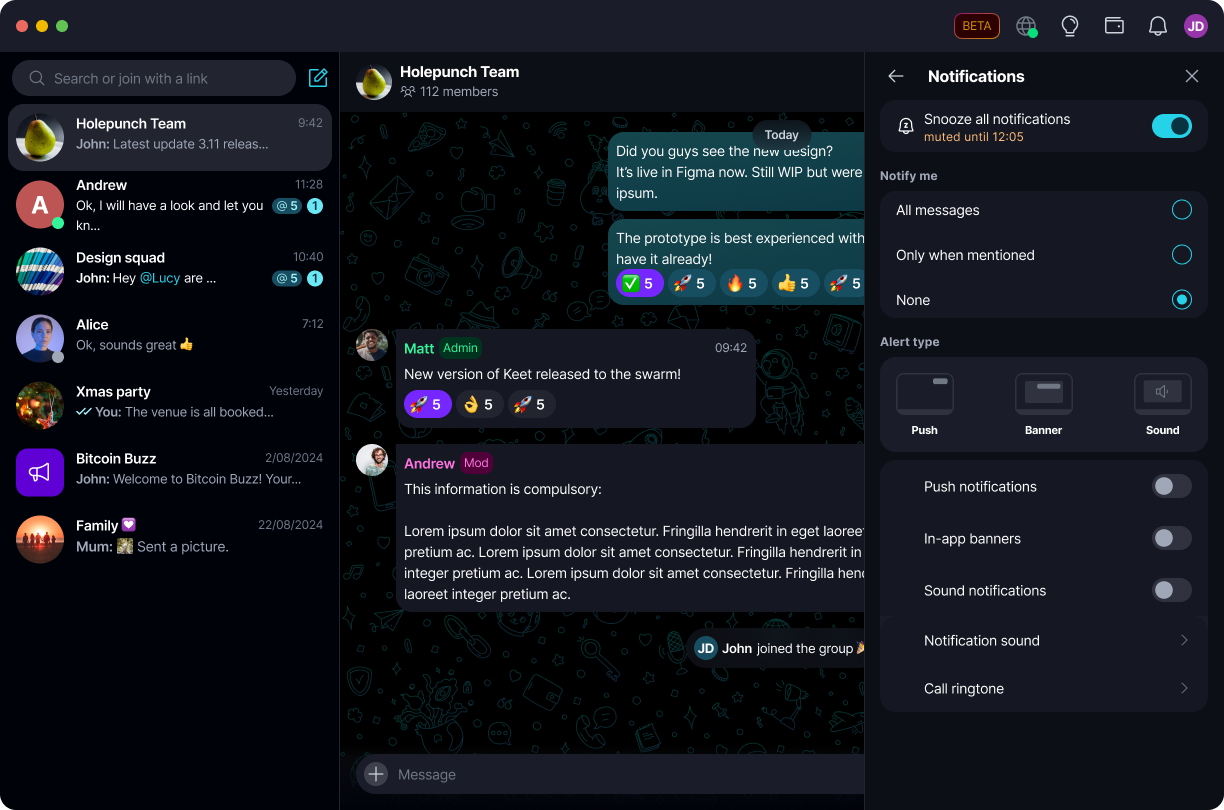
'Notifications and sounds' now shows the active snooze and the time it ends.
-
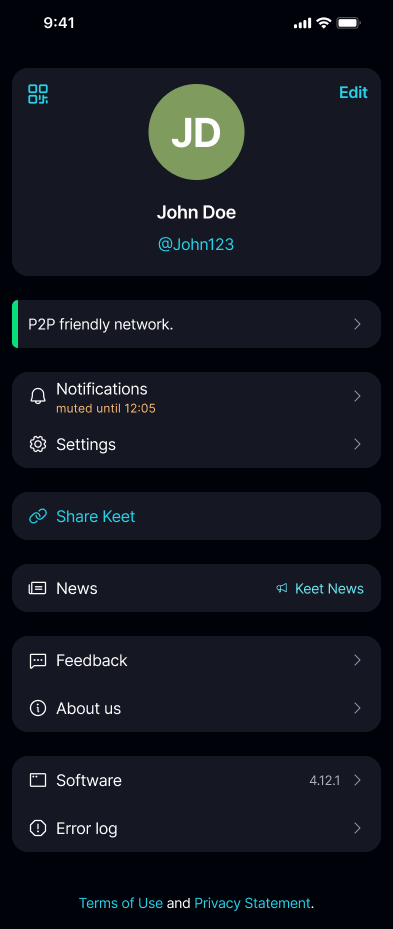
Go to 'Profile' and tap 'Notifications':
-
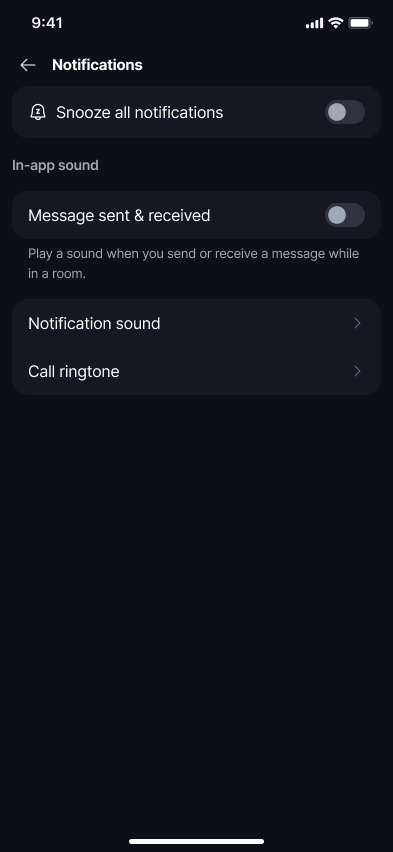
Tap 'Snooze all notifications' to open the 'Mute notifications' menu:
-
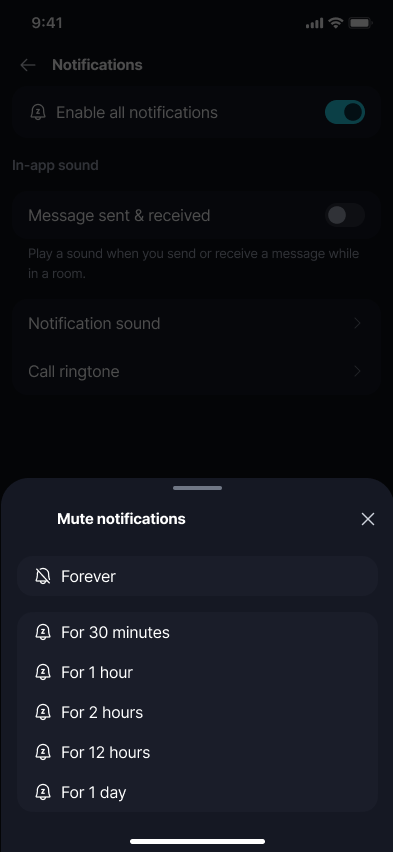
Choose how long to snooze for - Forever, 30 minutes, 1 hour, 2 hours, 12 hours, or 1 day:
-
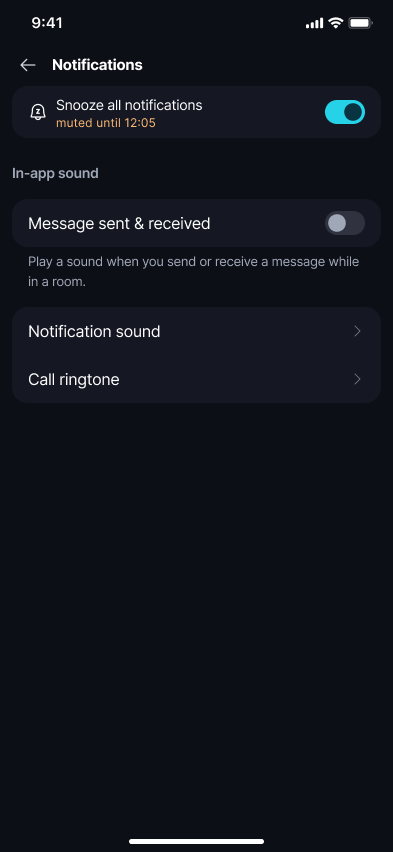
'Notifications' now shows the active snooze and the time it ends.
What happens while notifications are snoozed?
While a snooze is active, Keet:
- Does not show native push notifications for incoming messages.
- Does not show in-app notification banners or toasts for incoming messages.
- Does not play notification sounds for incoming messages.
- Does not play call ringtone notifications.
Snooze never blocks message delivery, message sync, room updates, or app usage - you'll still see everything as normal once you open a chat.
Snooze pauses alerts only - it doesn't mute individual chats. To keep ignoring a specific group after snooze ends, mute it separately from that group's settings.
How do I turn snooze off early?
Go back to 'Notifications and sounds' (desktop) or 'Notifications' (mobile) and toggle 'Snooze all notifications' off. Notifications immediately go back to behaving according to your existing notification settings.
Snooze also turns off on its own once the selected duration ends - you don't need to do anything.
Does snooze sync across my linked devices?
Yes. Since snooze is saved to your profile, it propagates to any linked device using the same profile, as long as that device supports profile snooze. If a linked device doesn't support it yet, that device simply keeps its previous notification behavior - your other notification settings won't be affected.
Looking for notification and sound settings in general? See Notifications.